How to Export Hevy Data and Keep Your Training History
To export Hevy data, open the Hevy app and follow the path its help center gives, in 5 steps: Profile, Settings, Export & Import Data, Export Data, Export Workouts. Save the file, keep one copy you never edit, and open a second copy as a CSV in Google Sheets or Excel. After importing it elsewhere, check three lifts against it.
On this page
Export Hevy data in 5 steps
Hevy's help center documents the export, and it sits in the app's settings. Here is its path, as 5 steps:
- Profile. Open the Hevy app and go to your profile.
- Settings. Open the settings from your profile.
- Export & Import Data. The data menu inside settings.
- Export Data. This opens the export options.
- Export Workouts. Information from your workout history. Export Measurements is a separate option for the measurements you logged.
Once the export is generated, save or share it with your phone's own options, and note where the file lands. Hevy's help center suggests the same file for a personal copy, a spreadsheet review or sending to a coach.
Quick check: menu labels can move between app versions. If a step looks different, check Hevy's article Exporting Your Data from Hevy, updated October 2026.
Keep one copy of the export you never edit
Before you open the file, make a copy. Rename the original with the date, such as workouts-2026-11-08.csv, and put it in cloud storage. Then work only on the copy.
The reason is spreadsheets. Excel and Sheets can reformat a CSV when they open it: a date read in another country's order, or a decimal weight like 82.5 turned into text. If you save over the file, those changes become part of your history.
An untouched original means you can always start again. It matters even more if the next app only imports, because the original becomes your only copy outside the old app.
Open the export in a spreadsheet and run four checks
Hevy's help center says the export can be opened in spreadsheet programs such as Google Sheets and Excel. Some programs may need you to import or open it as a CSV.
On a computer, use File, then Import, then Upload in Google Sheets, or Data, then From Text/CSV in Excel, which shows a preview first. On a phone, save the file to Google Drive and open it in the Sheets app.
The workout export contains information from your workout history. Read the header row first and note which columns, if any, hold your dates, exercise names, weights and reps. A detail the file doesn't carry can't reach the next app. Then run four checks. Each one catches a problem that is far easier to fix now than after an import:
| Check | Where to look | What it catches |
|---|---|---|
| Date range | The earliest and latest dates in the file | A file exported before your latest session: export again |
| Weight unit | One set you remember, compared with the same set in Hevy | Which unit the numbers are in, so you can set the next app to match. A mix-up shows as a 2.2× gap: 100 kg is 220 lb |
| Exercise names | Sort the exercise column A to Z | One lift saved under two names, which splits its history: rename one to match in your working copy, then re-check its dates and one decimal weight against the original |
| One recent session | Compare it with the session in the app | Confirms the rows match what you logged |
To find your heaviest set on one lift in the spreadsheet, filter the exercise column to that lift and sort the weight column from largest to smallest. For formulas that turn rows into weekly totals, see the workout tracker spreadsheet guide.
Import the Hevy CSV into another app
Trackers that import a CSV bring over different things. At a minimum you want exercises, sets, reps and dates, because dates are what turn rows into a history.
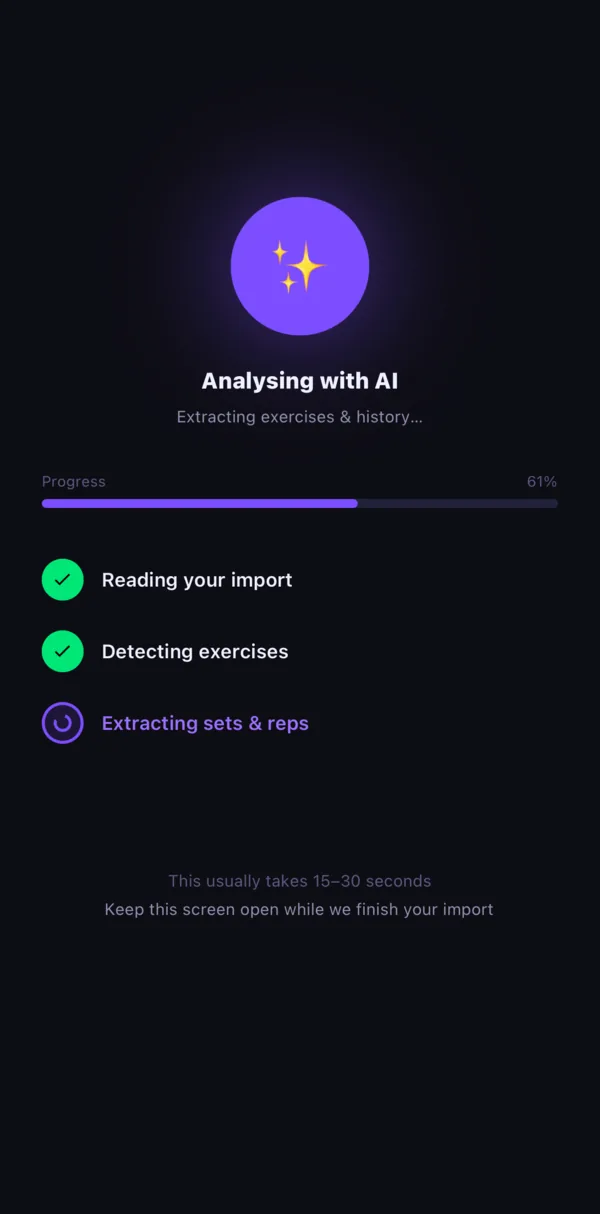
In Lifter Log, open the AI import and upload the CSV. The AI reads your exercises, sets, reps and dates, and dated sets and reps come in as progress, so your charts start full. Each imported exercise is also matched to a library of about 900 moves, so it arrives with reference pictures.
- Match the unit. Set Lifter Log to the unit you logged in, kg or lb, so its numbers read like the file's. Then one set you remember is enough to spot a mix-up.
- Stay online. The import needs a connection, and you get about 10 imports a day.
Check three lifts after the import
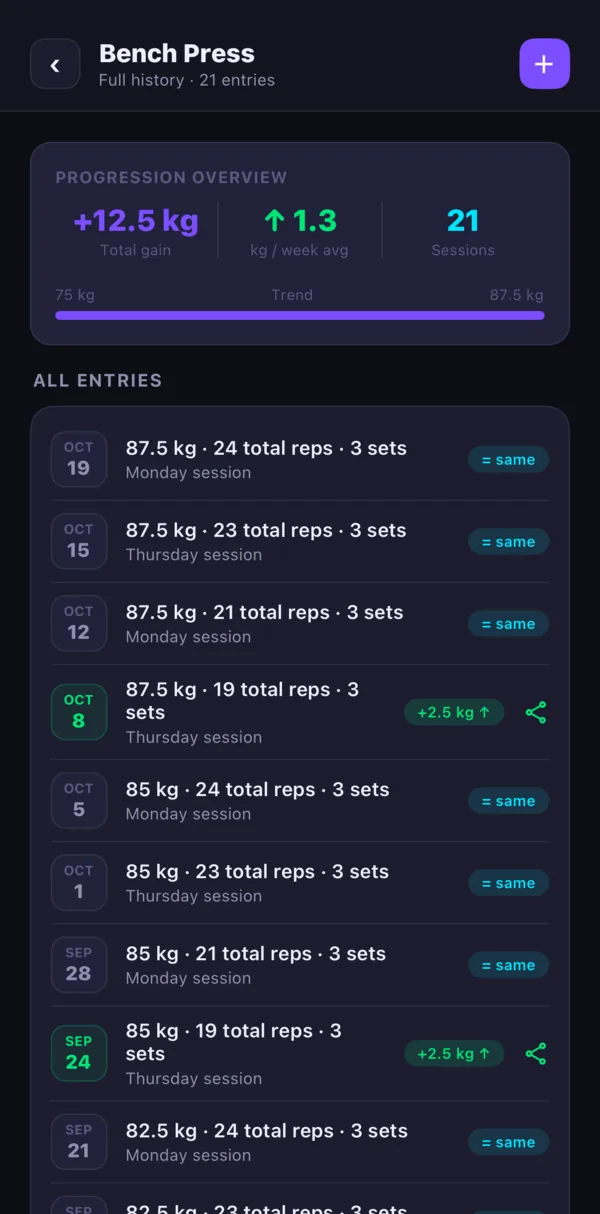
An import is only done once you have checked it, because accuracy depends on the source. The check takes a few minutes: pick your three most-logged lifts and compare two numbers for each, the number of sessions and the last top set.
Here is the check on an example history of 14 months, not a real lifter's data. In the CSV, filter the exercise column to one lift, sort by date with the newest first, and read the heaviest set on the top date. In Lifter Log, open the same exercise's full history, which lists every dated session.
Coach's tip: to count one lift's sessions in Google Sheets, use =COUNTUNIQUE(FILTER(A:A, C:C="Bench Press")). A is your date column and C your exercise column. Type the lift's name exactly as your file writes it.
If each set has its own time in the date cell, that counts sets. When Sheets reads the cell as a date, count days with =COUNTUNIQUE(ARRAYFORMULA(INT(FILTER(A:A, C:C="Bench Press")))), since a session in Lifter Log is the sets saved on one day.
| Lift | Sessions in the CSV | Last top set in the CSV | In Lifter Log |
|---|---|---|---|
| Bench press | 61 | 82.5 kg × 6 (182 lb) | 61 sessions, 82.5 kg × 6 |
| Back squat | 58 | 110 kg × 5 (243 lb) | 58 sessions, 110 kg × 5 |
| Deadlift | 47 | 140 kg × 3 (309 lb) | 47 sessions, 140 kg × 3 |
All three match, so the import passes the check. When a number doesn't match, check these two causes first:
- Weights about 2.2 times too high or too low. A unit mix-up: kilograms read as pounds or the reverse. Fix it in the exercise's history, which you can edit.
- Fewer sessions than the CSV. Compare the two lists of dates to find the missing ones. Check those rows in your working copy for a typo in the date or the lift's name and fix it. Then import a small file with just those rows, and open the lift's history to check they joined the same exercise, not a second one.
What stays behind in your original file
A tracker built for lifting won't have a place for everything, so know what stays in the original file before you delete anything from the old app.
- Effort ratings. Lifter Log has no RPE field, so any effort ratings stay only in your original file.
- Cardio. Lifter Log is lift-only, so any runs or rides stay only in your original file.
- Body measurements. These come in Hevy's separate Export Measurements file, and Lifter Log's import is for training logs. Enter tape measurements in Analytics, then Body; how to track body measurements covers which sites to use.
- Bodyweight. Lifter Log has no weigh-in log, so any bodyweight entries stay in your file.
- A way back out. Lifter Log has no export. Keep the original CSV as your backup.
Once the three-lift check passes, the habit that matters is the next session. How to log workouts covers per-set conventions, and how to track progressive overload shows what to do with the history you just moved.
How we checked
On November 8, 2026, we read Hevy's help center articles on exporting data. The steps and labels above are the ones they give on that date. Apps change their menus, so check the article if a step looks different.
Source: Hevy help center, Nov 2026
Hevy is a trademark of its owner; Lifter Log is not affiliated with it.